


What Is Computer Hardware? Types, Uses, Common Problems, Costs & Buying Guide
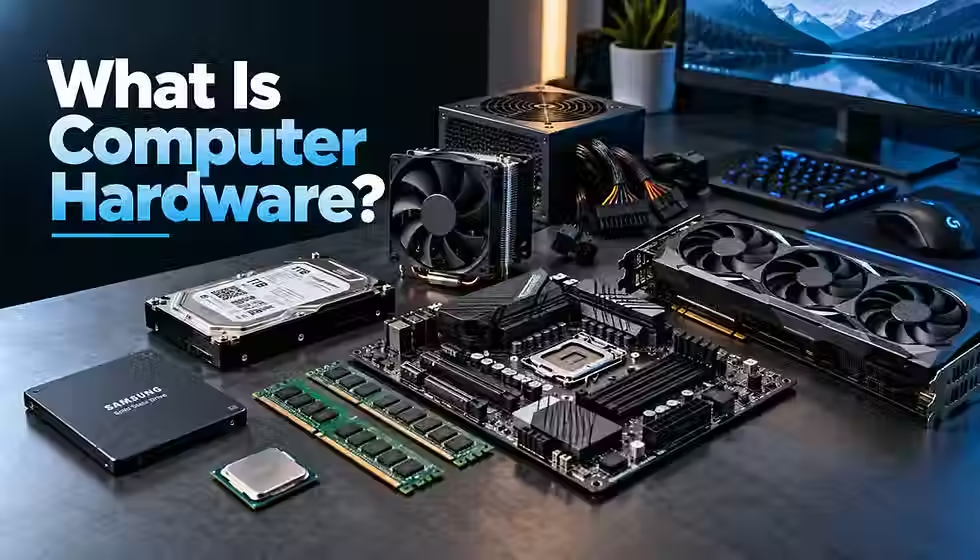
A laptop that freezes before a deadline, a game that stutters, a repair quote that costs more than the machine is worth: most people meet computer hardware at a stressful moment. This guide explains what hardware is, how the parts work together, what usually goes wrong, what things cost as of October 2026, and how to decide whether to repair, upgrade, or replace. It also covers the memory shortage that has pushed up the price of RAM, SSDs, and complete PCs, so you can buy with fewer surprises.
TL;DR
Computer hardware is the physical equipment of a computer system. Software and firmware are the instructions that make that equipment useful.
The CPU, RAM, storage, graphics, power supply, and cooling shape most of a desktop's real-world behavior. On laptops, the display, battery, and ports matter just as much.
Buy for your workload, not the biggest number. Web browsing, office work, and study need far less than gaming, video editing, or AI work.
Prices are unusually high in October 2026. A major tracker listed 32GB DDR5 kits at roughly $430 to $450 on October 12, 2026, against about $100 to $200 a year earlier, and IDC projects average PC prices to rise 18.3% in 2026.
Rule out software, cables, and drivers before blaming hardware, and always shut down and unplug a computer before opening it.
Short answer
Computer hardware is the physical parts of a computer system: components you can touch, such as the processor (CPU), memory (RAM), storage drive, motherboard, power supply, graphics card, display, keyboard, and mouse. Hardware runs on instructions from software and firmware. It takes in data, processes it, stores it, displays it, and moves it between devices.
Table of Contents
What Is Computer Hardware?
Computer hardware is the physical equipment that makes up a computer system: the parts you can touch, plug in, or see. Common examples include the central processing unit (CPU), random access memory (RAM), a solid-state drive (SSD), the motherboard, a power supply, a monitor, and a keyboard.
Hardware performs five jobs: input (getting data in), processing, storage, output, and communication. A keyboard supplies input, the CPU processes it, an SSD stores it, a monitor displays it, and a network adapter sends it to another device.
Hardware cannot do anything useful on its own. It needs software to supply instructions, and it needs firmware, which is low-level code stored on the device itself, to start up and control components. Phones, game consoles, smart TVs, routers, and car infotainment systems all contain computer hardware, even though they do not look like a PC. The same idea scales up to servers and cloud infrastructure, where racks of hardware run other people's software.
How Does Computer Hardware Work?
Computer hardware works by moving data through a repeating cycle of input, processing, storage, output, and communication. The operating system and device drivers coordinate the cycle so each component gets the right instructions at the right time.
Consider what happens when you double-click a photo:
The mouse sends the click through a wired or wireless connection. A driver translates the signal for the operating system.
The operating system asks the storage drive for the photo and the app that opens it. The SSD or hard drive reads the data and sends it across its interface to the motherboard.
The data lands in RAM, the fast short-term workspace. RAM is far faster than storage, but it loses its contents when power is removed.
The CPU runs the app's instructions. If the computer has a graphics processing unit (GPU), it can take over drawing work such as scaling and filtering the image.
The finished image travels to the monitor over HDMI, DisplayPort, or USB-C and appears on screen.
If you share the photo, a network adapter (Ethernet, Wi-Fi, or Bluetooth) transmits it.
The motherboard connects all of these parts, the power supply feeds them, and cooling hardware carries heat away. Before any of this happens, firmware (BIOS or UEFI) runs at power-on, tests the hardware, and hands control to the operating system.
Because the parts work as a chain, the slowest link often sets the pace. A fast CPU waiting on a nearly full, slow drive feels sluggish, and a powerful GPU gets held back by too little RAM. That chain effect is why balanced systems usually beat lopsided ones.
What Are the Main Types of Computer Hardware?
Computer hardware falls into nine broad categories: processing, memory, storage, input, output, networking and communication, power, cooling, and peripherals. The categories overlap, so treat them as a map rather than strict boxes.
Category | Main job | Examples |
Processing | Runs instructions and calculations | CPU, GPU, NPU, other accelerators |
Memory | Holds data for active work | RAM, CPU cache, VRAM |
Storage | Keeps data when power is off | SSD, HDD, USB flash drive |
Input | Sends data into the computer | Keyboard, mouse, microphone, webcam, scanner |
Output | Presents results | Monitor, speakers, printer, headphones |
Networking | Connects to other devices | Wi-Fi and Ethernet adapters, Bluetooth, router |
Power | Supplies and regulates electricity | Power supply, laptop battery, surge protector |
Cooling | Removes heat | Heat sinks, fans, liquid coolers |
Peripherals | Extend what a computer can do | Docks, game controllers, external drives |
Overlap is normal. A touchscreen is both input and output. A GPU processes data and also drives the display. An NVMe SSD is storage that talks over PCIe, the same interface family used by expansion cards. Newer categories keep appearing too: neural processing units (NPUs) and other AI accelerators are processors built for machine-learning work, and AI hardware covers that wider family in depth.
Major Internal Computer Hardware Components
Internal components sit inside the case or chassis. Each entry below covers what the part does, what to check when shopping, and a common misunderstanding.
Motherboard
The motherboard is the main circuit board. It connects the CPU, memory, storage, expansion cards, and ports, and delivers power to them. Its CPU socket and chipset decide which processors it accepts, and its form factor (ATX, micro-ATX, or mini-ITX) decides which cases it fits. Check RAM type and slots, M.2 slots, USB and display connectors, and Wi-Fi support. Common misunderstanding: a pricier board does not make a PC faster by itself. Higher-end boards mainly add features, power delivery for demanding CPUs, and expansion options.
CPU (Processor)
The CPU executes program instructions and coordinates the system. Shoppers see core count, thread count, boost clock, cache size, and power rating, but the processor's generation and design often matter more than any single number. Many CPUs include integrated graphics; chips that pair strong graphics with CPU cores are often called APUs. Common misunderstanding: more cores always means faster. Many everyday apps and games depend more on how fast each core runs.
RAM (Memory)
RAM is the working memory for open programs and files. Look at capacity, generation (DDR4 or DDR5), speed, and module count. DDR4 and DDR5 modules are physically and electrically different, and a given motherboard supports only one. JEDEC, the industry standards body, published the current DDR5 standard (JESD79-5D) in November 2025. Common misunderstanding: adding RAM speeds up a PC that already has enough. Extra RAM prevents slowdowns from running out; it does not raise raw speed. Prices have swung sharply, as covered in when RAM prices may come down.
Storage: SSD and HDD
Storage keeps data when power is off. A solid-state drive (SSD) uses flash memory with no moving parts. A hard disk drive (HDD) stores data on spinning platters and costs less per terabyte. SSDs come as SATA drives or faster NVMe drives, which use PCIe and usually plug into a small M.2 slot. Check capacity, interface, and warranty. Common misunderstanding: the speed printed on an SSD box is a peak figure, not what you feel when opening apps.
GPU and Integrated Graphics
A graphics processing unit (GPU) renders images and handles highly parallel math. Integrated graphics share the CPU's package and system memory, and they are enough for office work, streaming, and light games. A dedicated graphics card has its own video memory (VRAM), needs more power, and suits gaming, 3D work, video editing, and some AI tasks. Check VRAM, card length, and power connectors. Common misunderstanding: more VRAM guarantees higher frame rates. The GPU's own speed matters at least as much.
Power Supply Unit (PSU)
The power supply unit converts wall power into the lower DC voltages that components use. Check wattage, the 80 PLUS efficiency rating, the connectors your GPU and CPU need, and the warranty. Common misunderstanding: a bigger PSU draws more power. A PSU supplies what the system demands, so a 850-watt unit in a system that needs 300 watts does not draw 850. Never open a PSU; see the safety notes later in this guide.
Cooling
Cooling moves heat away from the CPU, GPU, and other chips using heat sinks, fans, heat pipes, liquid loops, thermal paste, and case airflow. When temperatures climb too high, processors slow themselves down, which is called thermal throttling. Check cooler socket support, height clearance, and radiator size. Common misunderstanding: liquid cooling is always better. A good air cooler can outperform a poor liquid cooler and is usually simpler and quieter to maintain.
Expansion Cards
Expansion cards add or upgrade functions through PCIe slots. Examples include graphics cards, capture cards, extra network adapters, and storage controllers. Many functions are now built into motherboards, so most buyers need only a graphics card, if that. PCIe is designed to be backward compatible, so a newer card generally works in an older slot at the older slot's speed. Check the physical slot size, free space, and power needs.
Networking Hardware
A network interface card (NIC) or built-in adapter provides Ethernet, Wi-Fi, and Bluetooth. Check the Wi-Fi generation and Ethernet speed. According to the Wi-Fi Alliance, Wi-Fi 7 adds multi-link operation and 320 MHz channels in the 6 GHz band. Common misunderstanding: a Wi-Fi 7 adapter makes any internet plan faster. It helps only if your router also supports it and your plan and signal can use the extra capacity.
BIOS, UEFI, and Firmware Context
Firmware is code stored in chips on the hardware itself. On a PC, BIOS or its modern successor UEFI starts the hardware at power-on, lets you change boot order and security settings, and hands control to the operating system. Microsoft lists UEFI firmware with Secure Boot support and TPM 2.0 among the minimum requirements for Windows 11. Update firmware only by following the manufacturer's instructions on stable power, because an interrupted update can leave a board unable to start.
External Hardware and Computer Peripherals
External hardware and peripherals are devices that connect to a computer from outside the case, usually through USB, HDMI, DisplayPort, Ethernet, Bluetooth, or Wi-Fi. They fall into three groups:
Input: keyboard, mouse, trackpad, microphone, webcam, scanner, and game controller.
Output: monitor, speakers, headphones, and printer.
Input and output: touchscreen, headset, external drive, multifunction printer, and docking station.
A few buying notes apply across the group. For monitors, check resolution, refresh rate, panel type, and which video ports your computer actually offers. For external storage, a drive on a USB4 or fast USB 3.2 port can feel close to an internal SSD, while an older USB port will not. For docks and hubs, confirm the laptop's charging wattage, supported displays, and port speeds. The USB-IF says USB Power Delivery 3.1 allows up to 240 W over a full-featured USB Type-C cable, but a given dock or laptop may support far less.
Headsets for augmented and virtual reality are a growing peripheral category; Articsledge's overview of spatial computing explains how they fit in.
Internal Hardware vs. External Hardware
Internal hardware sits inside the computer's case and external hardware connects from outside. Neither is automatically better or faster.
Aspect | Internal hardware | External hardware |
Placement | Inside the case or laptop body | Connected by cable or wirelessly |
Role | Core processing, memory, storage, power | Input, output, extra storage, expansion |
Upgradeability | Easy to hard, depending on desktop or laptop design | Usually plug-and-play |
Performance | Often has direct bus access | Limited by the connection (port, cable, wireless) |
Examples | CPU, RAM, motherboard, SSD, PSU | Monitor, keyboard, dock, external SSD |
The key idea is that the connection matters. A fast external SSD on a USB4 port can outrun an older internal SATA drive, while a laptop's soldered RAM cannot be upgraded at all. Judge each part by its specification and interface, not by where it sits.
Hardware vs. Software vs. Firmware
Hardware is the physical equipment, software is the changeable programs that run on it, and firmware is specialized code stored on hardware that controls how that device starts and behaves.
Aspect | Hardware | Software | Firmware |
What it is | Physical parts | Programs and apps | Low-level code stored on a device |
How it changes | Replace or add parts | Install, update, remove | Update from the maker, carefully |
Examples | CPU, SSD, monitor | Windows, a browser, a game | BIOS/UEFI, SSD controller code, router firmware |
Typical fix | Repair or replace | Reinstall or update | Update or reset per maker's steps |
The operating system (OS) manages hardware and runs applications. Familiar examples include Windows, Linux, macOS, and Android. At its center is the kernel, which controls memory, processes, and devices. Device drivers are small programs that let the OS talk to a specific component such as a GPU, printer, or network adapter. A missing or faulty driver can make healthy hardware look broken.
Programs are written as source code, translated by a compiler, and ultimately executed by the CPU as machine code. Articsledge's guide to software goes deeper on that side of the stack.
Computer Hardware Specifications Explained
A specification is a number or label that describes what a part can do. Specs are useful for comparing parts of the same kind, but a bigger number does not always mean proportionally better performance.
Spec | What it tells you | Caveat |
Cores and threads | How many tasks a CPU can run in parallel | Many apps use only a few cores |
Clock speed (GHz) | Cycles per second for a core | Comparable only within similar designs |
Cache | Small, very fast memory on the CPU | Helps some workloads far more than others |
Generation/architecture | Design improvements and features | A newer low-end part can lose to an older high-end one |
RAM capacity | How much data fits in memory | Beyond your needs, extra gives no benefit |
RAM generation and speed | DDR4 or DDR5, and transfer rate | Must match the motherboard and CPU support |
Storage capacity | How much you can keep | Leave free space for performance and wear |
SATA vs. NVMe | SATA tops out near 6 Gbit/s; NVMe uses PCIe lanes | Everyday speed differences are smaller than benchmarks suggest |
Sequential vs. real-world speed | Large-file peak vs. small random access | Box figures are peaks, not typical |
GPU tier and VRAM | Graphics power and memory for textures/models | Match to resolution and workload |
Resolution and refresh rate | Pixel count and screen updates per second | Your GPU must keep up |
PSU wattage and efficiency | Peak capacity and wall-to-DC efficiency | Quality and connectors matter, not just watts |
Socket and chipset | CPU fit and motherboard features | Same socket does not guarantee support; check BIOS |
PCIe version and lanes | Bandwidth for GPUs and NVMe drives | Devices fall back to the slower of card and slot |
USB and Wi-Fi versions | Port speed, power, and wireless capability | Names mislead; check actual speeds and certifications |
As of October 2026, mainstream consumer products use PCIe 4.0 and 5.0. PCI-SIG released the PCIe 7.0 specification in June 2025 at 128 GT/s and has begun work on PCIe 8.0, but those are specifications for builders, not parts you can buy for a home PC. On USB, the USB-IF notes that USB4 can reach 80 Gbps over cables certified for that speed, so cable quality is part of the spec.
Here is how a bigger number can mislead: doubling a PC's RAM from 16GB to 32GB helps only if you were running out, and a 5 GHz CPU is not automatically faster than a 4.5 GHz one from a more efficient design. Compare by workload tests and real reviews, then buy the spec that removes your actual bottleneck.
Hardware Compatibility: What Must Work Together?
Compatibility means parts work together electrically, physically, and in software. A part that physically fits is not always fully compatible, so check each of these links before you buy:
CPU, socket, chipset, and BIOS: the CPU must match the motherboard socket, the chipset must support that CPU, and an older board may need a BIOS update before it recognizes a newer processor.
RAM: the board accepts DDR4 or DDR5, not both, and has a maximum capacity and tested speeds listed by its maker.
Form factor: motherboard size (ATX, micro-ATX, mini-ITX) must fit the case.
GPU: check card length and thickness against the case, the PCIe slot, the power connectors, and the maker's recommended PSU wattage.
Storage: an M.2 slot may be SATA-only or NVMe-capable, and some slots share lanes with other ports.
CPU cooler: it must support your socket and clear the RAM and case panel.
Displays and ports: HDMI and DisplayPort versions, and whether a USB-C port carries video or charging, vary by device.
Laptops: RAM and storage are often soldered or proprietary, so upgrade options may not exist.
A simple example: a CPU may drop into a motherboard socket but refuse to start because the board's firmware predates it. Before buying, read the motherboard's CPU support list and memory support list on the maker's site, and ask the seller about returns if a part turns out to be incompatible.
What Is Computer Hardware Used For?
Computer hardware is used for everything from checking email to running scientific simulations, and the right hardware depends on the workload. This table shows which parts matter most and what is commonly overbought.
Use | What matters most | Commonly overbought |
Web, office, streaming | Fast SSD, enough RAM, decent display | Dedicated GPU, top-tier CPU |
School and study | Battery life, durability, keyboard, warranty | Gaming-class parts |
Business | Reliability, security features, support, manageability | Peak performance beyond daily tasks |
CPU cores, RAM, fast SSD | GPU, unless working on graphics or ML | |
Photo and video editing | CPU and GPU, large RAM, fast storage, color-accurate display | Storage speed beyond your workflow |
Gaming | GPU first, then CPU, RAM, and a matching monitor | A flagship CPU for a GPU-limited game |
CAD and 3D | Single-core speed, GPU, RAM, certified drivers | Cores your software cannot use |
Science and engineering | Many cores, large RAM, reliable storage | Display extras |
AI and machine learning | GPU memory, system RAM, fast storage | Local power for jobs better rented from the cloud |
Servers and networking | Redundancy, network speed, storage reliability | Consumer parts in always-on roles |
Embedded and industrial | Low power, long life, temperature tolerance | General-purpose performance |
Hardware choices for AI show the point well: training models usually needs far more compute than running them, which is one reason local machines often handle inference while big training jobs run in data centers or on AI infrastructure. Hardware also reaches beyond PCs, into edge AI devices and robotics hardware.
Common Computer Hardware Problems, Symptoms, and Causes
Hardware problems usually announce themselves through a symptom. Software, drivers, configuration, or malware can mimic hardware failure, so start with the safe checks below before assuming a part is dead.
Symptom | Likely causes | Safe first checks, and when to get help |
No power | Dead outlet, cable, PSU, power switch, or battery | Try another outlet and cable; for laptops, a known-good charger. Get help if the PSU or board is suspected. |
No boot or POST | Loose RAM or drives, failed boot drive, bad BIOS settings | Disconnect extras; reseat RAM only after power-down; check boot order. Get help if no beeps or lights. |
No display | Cable, wrong input, GPU, monitor, or RAM fault | Reseat cables, try another port or monitor. Get help if the GPU fails in another system. |
Overheating or random shutdowns | Dust, failed fan, dried paste, blocked vents, PSU strain | Clear vents, check fans, watch temperatures. Get help for repeated thermal shutdowns. |
Freezes or crashes | Failing RAM, drive errors, drivers, overheating, malware | Update drivers; run memory and drive diagnostics. Get help if tests fail. |
Memory instability | Bad module, wrong speed settings, mixed kits | Test one module at a time; reset BIOS memory settings. |
Storage failure signs | Failing drive, loose cable, corrupted file system | Back up now; run the maker's diagnostic. Clicking or disappearing drives need a technician. |
Graphical artifacts | Overheating GPU, driver issue, failing GPU or cable | Check temperatures, update or roll back drivers, swap cables. |
USB or peripheral problems | Cable, port, power draw, driver, damaged port | Try another port and cable; remove hubs. Damaged ports may need repair. |
Network adapter issues | Driver, router, antenna, adapter fault | Restart router, update driver, test Ethernet. A USB adapter is a cheap test. |
Fan noise or failure | Dust, worn bearings, high load | Clean vents with the computer off; replace fans only if comfortable. |
PSU symptoms | Restarts under load, burning smell, no power | Stop using it if you smell burning. Do not open it; replace or send for service. |
Battery degradation or swelling | Normal wear; heat; defects or damage | Reduced runtime is normal with age. A swollen battery is a hazard; see below. |
Damaged ports | Physical stress, bent pins, debris | Do not force connectors; board-level repair needs a technician. |
Battery safety: lithium-ion batteries can be hazardous if swollen, damaged, punctured, or overheated. Stop using and charging a swollen battery, keep it away from heat, and do not puncture or press on it. The EPA advises contacting the battery or device maker for handling information and not putting lithium-ion batteries in household trash or curbside recycling; use certified recyclers or take-back programs.
Power supply safety: never open or repair a PSU if you are not qualified. Internal capacitors can hold dangerous charge even when it is unplugged. Replace the unit instead.
How to Diagnose a Computer Hardware Problem
Diagnose by working from the safest, simplest checks to the most invasive, changing one thing at a time. Follow this sequence:
Protect your data. If the computer still runs, back up important files before testing.
Document symptoms. Note error messages, beeps, lights, when it happens, and what changed recently.
Check power and cables. Test the outlet, charger, power strip, and display and data cables.
Remove extras. Unplug USB devices, docks, and external drives, then test again.
Check temperatures and airflow. Look for blocked vents, loud fans, or very hot surfaces. Dell lists a normal operating range of about 10°C to 35°C (50°F to 95°F) for general equipment in its service guidance.
Review OS tools. Use Event Viewer, Reliability Monitor, or the maker's diagnostic utility.
Run memory and storage tests. Use the built-in or manufacturer diagnostics and read drive health data.
Isolate recent changes. Undo new drivers, updates, or hardware, and test in safe mode.
Reseat only user-serviceable parts. Power down and unplug first. Touch an unpainted metal surface for at least five seconds or use a grounded wrist strap, and handle parts by their edges, as Dell advises.
Try known-good parts. Swap a cable, RAM stick, or power adapter you know works.
Escalate. Stop and call a technician for swollen batteries, burning smells, liquid damage, PSU faults, or board-level repair.
Repair, Upgrade, or Replace? How to Decide
The best choice depends on what is wrong, how old the computer is, and what a fix costs compared with a replacement that meets your needs. Weigh these factors together: the computer's age, the repair quote versus replacement price, your performance needs, reliability, remaining warranty, upgrade options, operating-system support, parts availability, expected remaining life, effort to migrate data, and energy efficiency. ENERGY STAR says certified computers use about 30% to 40% less energy than standard models, which can matter for always-on machines.
Scenario | Often better | Why |
Recent laptop, slow from low storage or RAM | Upgrade, if parts are not soldered | Cheap relative to value, though RAM prices are elevated now |
Three-year-old laptop with cracked screen | Repair | Screen cost is usually well below a comparable new laptop |
Seven-year-old desktop with a failed motherboard | Replace or rebuild | Old platforms need old parts that may be scarce |
Desktop with good CPU but weak graphics | Upgrade the GPU | Works if PSU, case, and PCIe slot support it |
PC that cannot run Windows 11 | Replace, or plan carefully | Security updates are the issue, not speed |
Swollen laptop battery | Professional battery replacement | Do not keep using it |
A real example of software support driving a hardware decision: Microsoft ended Windows 10 support on October 14, 2025, meaning no more routine security updates. Personal-use PCs can enroll in Extended Security Updates through October 12, 2027, but Microsoft recommends moving to Windows 11 where the hardware is eligible. Check the Windows 11 requirements (including TPM 2.0) before spending on upgrades for an older PC.
How Much Does Computer Hardware Cost?
Pricing snapshot: October 2026, in US dollars. The figures below are lowest-listed or typical street prices reported between October 2 and October 12, 2026, rounded into ranges. Prices change daily, and country, tax, sales, brand, and stock all matter. Part prices, complete-system prices, and labor are different things, so treat them separately.
Item | Approximate range (Oct. 2026) | Notes |
Mainstream desktop CPU | $175 to $340 | For example Ryzen 5 9600X (~$174), Core Ultra 5 245K (~$179), Ryzen 7 9700X (~$339) |
High-end desktop CPU | $440 to $660 | Ryzen 7 9800X3D (~$444), Core Ultra 9 285K (~$519), Ryzen 9 9950X3D (~$657) |
RAM, DDR5 | 16GB: $250 to $295; 32GB: $430 to $450; 64GB: ~$910 | Roughly triple a year earlier |
RAM, DDR4 | 16GB: $100 to $120; 32GB: ~$200; 64GB: ~$490 | Cheaper but needs older platforms |
NVMe SSD | 1TB: ~$150 to $155; 2TB: ~$210 | Cheapest listings in August 2026; contract prices still rising |
Hard drive | Large drives rose sharply | One 24TB model went from $249 to $299 in 2025 to $389 in January 2026 |
Entry GPU | $290 to $430 | Arc B570/B580, RTX 5060 |
Midrange GPU | $460 to $815 | RTX 5060 Ti, RX 9060 XT, RX 9070, RTX 5070, RX 9070 XT |
High-end GPU | $1,170 to $1,640 | RTX 5070 Ti, RTX 5080; the RTX 5090 listed near $7,177 |
Chromebook or budget laptop | $200 to $450 | Sale prices seen in September 2026 |
Midrange laptop | $650 to $900 | Often on sale; check specs carefully |
Motherboards, PSUs, cases, coolers, monitors, keyboards, mice | No reliable consolidated snapshot | Compare several retailers and check seller and stock |
Professional repair labor | No reliable national price list found | Get a written quote and diagnostic fee up front |
Why the high prices? Gartner estimated in February 2026 that combined DRAM and SSD prices would surge about 130% by the end of 2026, and that memory would reach 23% of a PC's bill of materials, up from 16% in 2025. IDC now projects average PC selling prices to rise 18.3% in 2026 and sees no meaningful relief in the memory shortage before the end of 2027. Those are industry averages, not a guaranteed increase for every computer. See Articsledge's analysis of when RAM prices may fall.
Computer Hardware Buying Guide
Start with your workload and total budget, then spend where it removes your actual bottleneck. A sensible order of priority is: CPU and platform, RAM, storage, GPU, display, ports and connectivity, battery life (laptops), cooling and noise, efficiency, compatibility, upgradeability and repairability, warranty and support, and expected useful life.
Buyer | Prioritize | Reasonable starting point | Often overbought |
Student or basic user | Battery, keyboard, durability, warranty | 16GB RAM (8GB is the floor), 512GB SSD, integrated graphics | Gaming GPU, flagship CPU |
Office or business | Reliability, security, support, dock support | 16GB, 512GB SSD, TPM 2.0, business warranty | Peak performance |
Programmer | CPU cores, RAM, SSD, screen | 16GB to 32GB, 1TB SSD | GPU, unless ML or graphics |
Creator | GPU, RAM, fast storage, color-accurate display | 32GB+, 1TB to 2TB SSD, capable GPU | Maximum SSD speed |
Gamer | GPU, then CPU, matching monitor | 16GB to 32GB, 1TB NVMe, GPU sized to your screen | Flagship CPU, RGB, oversized PSU |
Professional workstation | Reliability, RAM, certified GPU, support | 64GB+, ECC if needed, on-site warranty | Parts your software cannot use |
These are starting points, not rules. Do you need a dedicated GPU? Only for gaming, 3D, serious video work, or AI tasks; integrated graphics cover everyday use. Is upgrading worthwhile? Yes when a single bottleneck (low RAM, an old HDD) holds back an otherwise good machine and the part is not soldered. Before paying, verify the exact model and configuration, the seller and return policy, warranty length and who services it, the port list, and whether memory and storage can be upgraded later.
Worth paying for: enough RAM, a quality SSD, a good display, and a solid warranty. Commonly overbought: top-tier CPUs for light work, extreme SSD speeds, flashy lighting, and power supplies far larger than the system needs.
Laptop vs. Desktop Hardware
Neither is universally better. Laptops trade upgradeability and sustained power for portability; desktops trade portability for performance per dollar and easier repair.
Factor | Laptop | Desktop |
Performance per dollar | Lower at the same price | Usually higher |
Portability | Built for it | None |
Power and thermals | Limited by chassis and battery | More headroom for cooling |
Battery | Built in, wears out | Not needed (a UPS is optional) |
Repair and upgrades | Varies; RAM and storage may be soldered | Most parts replaceable |
Ergonomics and display | Compact; external monitor helps | Your choice of monitor, keyboard, mouse |
Space | Small | Needs a desk and peripherals |
Long-term cost | Often replaced whole | Parts can be upgraded over time |
Prebuilt PC vs. Building Your Own Computer
Prebuilt PCs win on convenience and support; custom builds win on choice and upgrade control. Market conditions can change the value equation, so compare current prices of both.
Factor | Prebuilt | Custom build |
Convenience | Ready to use | You assemble and install the OS |
Warranty and support | One company to call | Separate warranties per part |
Component choice | Limited to configurations | Full control |
Compatibility | Handled by the maker | Your responsibility |
Troubleshooting | Support helps; some parts proprietary | You isolate faults yourself |
Pricing | Can be competitive when parts are scarce | Can save money when parts are cheap |
Upgrades | Check PSU, case, and board limits | Designed for it |
In a volatile market, such as the current memory shortage, a prebuilt or an older-stock system can sometimes cost less than the same parts bought separately, and sometimes it does not. Price the full list both ways before deciding.
Should You Buy New, Used, or Refurbished Hardware?
Buy new for the longest support and warranty, refurbished for a middle path with tested parts and some protection, and used only when the discount covers the risk.
Factor | New | Used | Refurbished |
Warranty | Full | Often none | Usually limited |
Price | Highest | Lowest | Between |
Battery and drive wear | None | Unknown | Often replaced or tested |
Risk | Lowest | Highest | Moderate, depends on seller |
There is no single discount that fits every case. It should cover the missing warranty, the shorter remaining life, and the chance of a hidden fault. Use this checklist:
Seller reputation and a clear return policy.
Exact model and specifications that match the listing.
Battery health or cycle count for laptops.
Drive health (SMART data) and drive age.
Physical damage to hinges, screen, ports, and keyboard.
Age of key components such as CPU generation and RAM type.
Locks and management restrictions, such as account locks, firmware passwords, or company device management.
Charger and accessories included.
How Long Does Computer Hardware Last?
Hardware ends its useful life in three different ways: physical failure, performance obsolescence, and software-support obsolescence. A computer can fail on any one while the others are fine.
Physical failure: moving parts such as fans and hard drives wear out; batteries lose capacity; capacitors and PSUs age with heat. Apple says its notebooks work best at 10°C to 35°C and that high heat can permanently reduce battery capacity.
Performance obsolescence: the hardware still works but cannot handle newer demands, such as larger apps, higher-resolution video, or modern games.
Software-support obsolescence: the maker stops providing updates or the OS requirements move beyond the hardware, as with Windows 10 after October 14, 2025.
Credible lifespan numbers are scarce for consumer parts, so this guide avoids guessing them. A useful real data point comes from cloud backup company Backblaze, which reported a 1.36% annualized failure rate for 2025 across 344,196 hard drives in its data centers (down from 1.55% in 2024). That report excluded boot drives and SSDs, and data-center conditions differ from home use, so treat it as evidence that failure rates vary by model and age, not as a promise for your drive. Watch drive-health warnings, listen for new fan noise, and replace aging batteries and PSUs before they fail in a way that damages other parts.
How to Maintain Computer Hardware and Extend Its Life
Good maintenance is mostly about heat, power, and backups. Skip folklore and do these things:
Airflow and dust: keep vents clear and use the computer on hard, flat surfaces. Dell advises leaving about 10 cm (4 inches) of clearance on vented sides.
Cleaning: power down and unplug, then use short bursts of compressed air while holding fans still, or a soft brush. Never spray liquid into a computer.
Temperatures: check them occasionally, especially after adding hardware or moving a desktop.
Firmware and drivers: install updates from the computer or part maker, not random download sites, and do not interrupt firmware updates.
Power protection: use a quality surge protector, or a UPS for desktops where sudden power loss would hurt.
Battery care: avoid heat, and for long storage keep the battery near half charge in a cool place, as Apple advises.
Backups and drive health: keep at least two copies of important data and watch drive-health (SMART) alerts. Businesses can look at disaster-recovery services.
Power settings: ENERGY STAR's specification sets display sleep within 15 minutes and system sleep within 30 minutes of inactivity, and notes screen savers do not save energy.
Common Computer Hardware Myths
Myth: More RAM always makes a PC faster. Fact: extra RAM helps only when you would otherwise run out.
Myth: Higher GHz always means a faster CPU. Fact: design, core count, cache, and workload matter as much.
Myth: SSDs never fail. Fact: they have no moving parts but can fail, wear out, or lose data, so back up.
Myth: A larger PSU always uses more power. Fact: the system's demand sets power draw; a bigger unit just has headroom.
Myth: Every slow computer needs replacing. Fact: malware, low storage, startup bloat, dust, or a failing drive are often fixable.
Myth: Screen savers save energy. Fact: ENERGY STAR says they do not; sleep modes do.
Myth: More VRAM always means more speed. Fact: VRAM prevents memory shortages; the GPU's processing power still sets the pace.
The Future of Computer Hardware
Several trends are well supported. Some are shipping today; others are announced or still in development.
Shipping today: neural processing units (NPUs) for on-device AI, chiplet-style packaging in many processors, and DDR5 memory. See Articsledge on AI chips.
Standards announced: PCIe 7.0 was released to PCI-SIG members in June 2025, and PCI-SIG says PCIe 8.0 work is underway. The Wi-Fi Alliance describes Wi-Fi 8 as a next generation focused on reliability.
Pressure points: AI demand is shaping memory and storage supply, and IDC expects the shortage to last through 2027.
Speculative: quantum hardware is advancing but is not a home-computer component.
FAQ
What is computer hardware in simple terms?
Computer hardware is the physical parts of a computer that you can touch, such as the processor, memory, storage drive, motherboard, monitor, and keyboard. It does the work that software tells it to do.
What are five examples of computer hardware?
Five examples are the CPU, RAM, an SSD, a motherboard, and a monitor. Others include a graphics card, power supply, keyboard, mouse, and router.
What are the main types of computer hardware?
The main types are processing, memory, storage, input, output, networking, power, cooling, and peripherals. The categories overlap; a touchscreen, for example, is both input and output.
Is a CPU hardware or software?
A CPU is hardware. It is a physical chip that runs software instructions, and it relies on firmware and an operating system to do useful work.
Is RAM hardware?
Yes, RAM is hardware. It is made of physical memory modules that temporarily hold data for running programs, and its contents disappear when power is removed.
What is the difference between hardware and software?
Hardware is the physical equipment, and software is the programs and data that tell it what to do. Firmware is a third type: low-level code stored on a device so it can start and operate.
What hardware makes a computer faster?
It depends on the bottleneck. Replacing an HDD with an SSD, adding RAM when memory is full, upgrading an old CPU, or adding a stronger GPU for games can each help, and fixing overheating restores lost speed.
How much RAM does a typical user need now?
For most people, 16GB is a comfortable amount in 2026, and 8GB is a tight minimum for light use. Heavy editing, large projects, and virtual machines often benefit from 32GB or more. Microsoft's Windows 11 minimum is 4GB.
Is an SSD better than an HDD?
For most uses, yes. SSDs open apps and files much faster, run quietly, and have no moving parts. HDDs still cost less per terabyte, which makes them useful for bulk storage and backups.
How can I tell whether a problem is hardware or software?
Look at the pattern. Problems tied to one app, update, or driver point to software. Problems that persist in safe mode or after a clean install, or that come with beeps, heat, or odd noises, point to hardware.
Is it cheaper to repair or replace a computer?
It depends. Repair makes sense when it costs much less than a comparable replacement and the machine still meets your needs and gets updates. Old or unsupported machines are often better replaced. Compare written quotes with current prices.
How much does computer hardware cost?
As of October 2026, mainstream CPUs listed around $175 to $340, 1TB NVMe SSDs near $150, 32GB of DDR5 near $430 to $450, and GPUs from about $290 to over $1,600. Memory-shortage prices are elevated; see the cost section above.
Key Takeaways
Hardware is the physical layer; it works only with firmware, drivers, an operating system, and software.
Match parts to your workload. A fast SSD and 16GB of RAM suit most everyday users, and a dedicated GPU matters mainly for gaming, 3D, video, and AI work.
Physical fit is not compatibility. Check socket, chipset and BIOS support, RAM generation, case clearance, and PSU capacity and connectors.
October 2026 prices are elevated because of the memory shortage. IDC projects average PC prices up 18.3% in 2026 and sees no meaningful relief before the end of 2027.
Rule out software, drivers, and cables first. Power down, unplug, and use ESD precautions before internal work, and never open a power supply.
A swollen battery is a hazard. Stop using it and follow the maker's and EPA's guidance for disposal.
For repair versus replace, compare a written quote with current replacement prices and check operating-system support. Windows 10 support ended October 14, 2025.
Used or refurbished buys need a clear return policy, battery and drive checks, and confirmation that no locks remain.
Actionable Next Steps
Define your workload. List what you do daily and the heaviest task you run.
Inventory your current hardware. Note CPU, RAM, storage, GPU, ports, and age from your system information.
Identify the bottleneck or problem. Check temperatures, memory use, and drive health, and rule out software.
Set a total budget. Include peripherals, tax, and a warranty.
Check compatibility. Verify socket, RAM type, size, connectors, and firmware support in the maker's lists.
Compare repair, upgrade, and replacement. Use written quotes and current prices.
Verify the seller and warranty. Read return terms and confirm the exact model.
Protect your data. Back up before any repair, upgrade, or sale.
Maintain the system. Clean vents, update firmware from makers, and monitor drive health.
Glossary
BIOS: Firmware that starts a computer's hardware before the operating system loads.
Cache: Small, very fast memory on a processor that holds frequently used data.
Chipset: Controller chips on a motherboard that manage communication between parts.
CPU: The processor that runs program instructions.
DDR: Double data rate, the family of RAM generations such as DDR4 and DDR5.
DIMM: A memory module that plugs into a desktop motherboard's RAM slot.
Driver: Software that lets the operating system control a hardware device.
Firmware: Low-level code stored on a device that controls how it starts and works.
Form factor: The standard size and layout of a part, such as ATX or mini-ITX.
GPU: A processor specialized for graphics and highly parallel math.
HDD: A hard disk drive that stores data on spinning platters.
Heat sink: A metal part that draws heat away from a chip.
M.2: A small slot and card format used mainly for SSDs and some wireless cards.
Motherboard: The main circuit board that connects all components.
NIC: Network interface card or adapter that connects a computer to a network.
NVMe: A fast storage protocol that runs over PCIe.
PCIe: A high-speed connection used by graphics cards, SSDs, and expansion cards.
Peripheral: An external or add-on device such as a keyboard, printer, or dock.
PSU: Power supply unit that converts wall power into voltages computers use.
RAM: Fast, temporary memory for active programs and data.
SATA: An older storage interface used by many HDDs and SSDs.
SSD: A solid-state drive that stores data in flash memory.
Thermal throttling: Automatic slowing of a chip to avoid overheating.
UEFI: The modern replacement for BIOS, with better security and boot features.
USB: A common standard for connecting devices and delivering power.
VRAM: Dedicated memory on a graphics card.
Sources & References
Prices and market data are time-sensitive and reflect the dates shown.
RAM price tracking 2026: lowest price on DDR5 and DDR4 memory of all capacities. Tom's Hardware, updated October 12, 2026. https://www.tomshardware.com/pc-components/ram/ram-price-index-2026-lowest-price-on-ddr5-and-ddr4-memory-of-all-capacities
GPU price tracking 2026: lowest price on every graphics card from Nvidia, AMD, and Intel. Tom's Hardware, updated October 12, 2026. https://www.tomshardware.com/pc-components/gpus/lowest-gpu-prices-tracking
CPU Price Index 2026: the lowest price on every PC processor. Tom's Hardware, updated October 2, 2026. https://www.tomshardware.com/news/lowest-cpu-prices
32GB of DDR5 now costs $375 minimum: AI shortage continues to squeeze PC building. Tom's Hardware, June 3, 2026. https://www.tomshardware.com/pc-components/ddr5/32gb-of-ddr5-now-costs-usd375-minimum-ai-shortage-continues-to-squeeze-pc-building
SSD prices in 2026: what a terabyte of flash costs. Capital & Compute, updated October 7, 2026 (retail prices from August 2026). https://capitalandcompute.net/ssd-prices/
HDD prices climb 46% in just four months. Club386, January 16, 2026. https://www.club386.com/hdd-prices-climb-46-in-just-four-months/
The best laptop deals. TechRadar, updated September 22, 2026. https://www.techradar.com/news/mobile-computing/laptops/laptop-deals-cheap-laptops-1296090
PC Market 2026: Memory Shortage Drives 11% Shipment Drop. IDC, June 2, 2026. https://www.idc.com/resource-center/blog/pc-market-enters-volatile-territory-as-memory-shortage-persists-through-2027/
Gartner Says Surging Memory Costs Will Reduce Global PC and Smartphone Shipments in 2026. Gartner, February 26, 2026. https://www.gartner.com/en/newsroom/press-releases/2026-02-26-gartner-says-surging-memory-costs-will-reduce-global-pc-and-smartphone-shipments-in-2026
PC Prices Could Stay High Through 2027: What Buyers Should Know. TechRepublic, October 12, 2026. https://www.techrepublic.com/article/news-pc-prices-high-through-2027/
Windows 11 Specifications. Microsoft, n.d. https://www.microsoft.com/en-us/windows/windows-11-specifications
Windows 10 End of Support. Microsoft, n.d. https://www.microsoft.com/en-us/windows/end-of-support
Backblaze Drive Stats for 2025. Backblaze, February 12, 2026. https://www.backblaze.com/blog/backblaze-drive-stats-for-2025/
Electrical Safety for Dell Product Repair: ESD Protection and Precautions. Dell Technologies, n.d. https://www.dell.com/support/kbdoc/en-us/000137973/esd
Used Lithium-Ion Batteries. U.S. Environmental Protection Agency, n.d. https://www.epa.gov/recycle/used-lithium-ion-batteries
Computers. ENERGY STAR, U.S. EPA and U.S. Department of Energy, n.d. https://www.energystar.gov/products/computers
USB Power Delivery. USB Implementers Forum, n.d. https://www.usb.org/usb-charger-pd
USB4. USB Implementers Forum, n.d. https://www.usb.org/usb4
Wi-Fi CERTIFIED 7. Wi-Fi Alliance, n.d. https://www.wi-fi.org/discover-wi-fi/wi-fi-certified-7
DDR5 SDRAM (JESD79-5D). JEDEC, November 2025. https://www.jedec.org/standards-documents/docs/jesd79-5c01
PCI-SIG Releases PCIe 7.0 Specification to Support the Bandwidth Demands of Artificial Intelligence at 128.0 GT/s Transfer Rates. PCI-SIG via Business Wire, June 11, 2025. https://www.businesswire.com/news/home/20250611299049/en
Batteries: Maximizing Performance. Apple, n.d. https://www.apple.com/batteries/maximizing-performance/


